Tuesday, April 3, 2012

Dynamically changing Label Size in CRM fields

In the most of the times, we can manage the default width CRM provides to show a valid text to CRM labels. But there are occasions , that the customers really asking to put a lengthily text in to a CRM and they want it in one Line!

By default this cannot be possible, but still this can be implement by over writing CRM Table Styles in the Specific table.

For this you can do below steps.

1.create sections for each field, so the over write behavior will not effect to other fields in the Page.
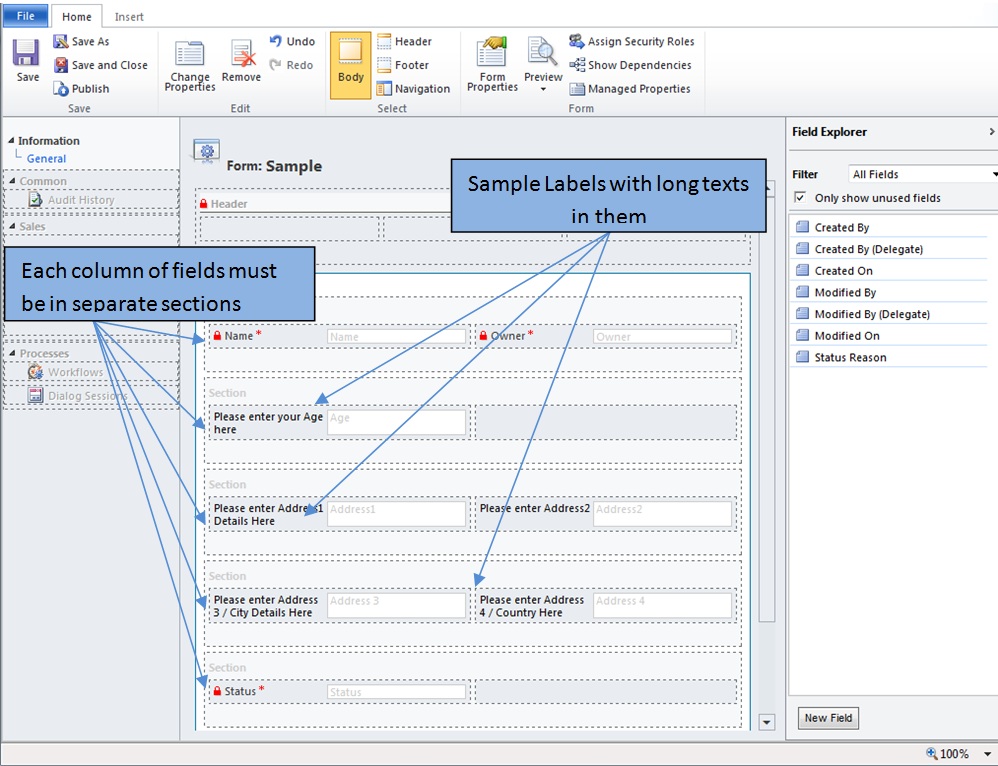


2. Call the Functions for each and every field.
Example
Function: SetLabelWidth
Parameters: 'new_age', 144

  3. Copy the SetLabelWidth function to the JavaScript Library
function SetLabelWidth(targetLabelName, newWidth)
{
    var targetTable = null;
    var colIndex = 0;
    var sectionId;

    var tabs = Xrm.Page.ui.tabs;
    for (var i = 0; i < tabs.getLength(); i++)
    {
        var tab = tabs.get(i);
        var sections = tab.sections;
        for (var j = 0; j < sections.getLength(); j++)
        {
            var section = sections.get(j);
            var controls = section.controls;
            for(var k = 0; k < controls.getLength(); k++)
            {
                if(controls.get(k).getName() == targetLabelName)
                {
                    sectionId = section._control._element.id;
                    colIndex = k + 1;
                }
            }
        }
    }

    targetTable = document.getElementById(sectionId);
 
    if(targetTable == null)
    {
        //Request field not found in any of the tables
        return;
    } 

    var continerTableWidth = targetTable.clientWidth;

    var td1W = targetTable.rows[0].cells[0].clientWidth; 
    var td2W = targetTable.rows[0].cells[1].clientWidth;
    var td3W = targetTable.rows[0].cells[2].clientWidth;
    var td2C = targetTable.rows[0].cells[1].all[0].offsetWidth;
    var td4W = 0;
    var td4C = 0;
    var sectionPadding = 20
    var cellPading = 3;

    if(targetTable.rows[0].cells[3] != null)
    {
        td4W = targetTable.rows[0].cells[3].clientWidth;
        td4C = targetTable.rows[0].cells[3].all[0].offsetWidth;
    }
    else
    {
        td3W = continerTableWidth / 2;
    }

    //Break the Table Style
    targetTable.style.tableLayout = "";
    targetTable.width = continerTableWidth;

    var controlNewWidth = 0;

    if(colIndex == 1)
    {
        controlNewWidth = td1W + td2W - newWidth;

        targetTable.rows[0].cells[0].width = newWidth; 
        targetTable.rows[0].cells[1].width = controlNewWidth;

        if(td4W == 0)
        {
            targetTable.rows[0].cells[2].width = td3W;
        }
        else
        {
            targetTable.rows[0].cells[2].width = td3W - sectionPadding;

            targetTable.rows[0].cells[3].width = td4W - (cellPading * 2);  
            targetTable.rows[0].cells[3].all[0].style.width = td4C;
        }
    }
    else if(colIndex == 2)
    {
        controlNewWidth = td3W + td4W - newWidth;

        targetTable.rows[0].cells[0].width = td1W + (cellPading * 2);
        targetTable.rows[0].cells[1].width = td2W;

        targetTable.rows[0].cells[2].width = newWidth - sectionPadding;

        targetTable.rows[0].cells[3].width = controlNewWidth;
        targetTable.rows[0].cells[1].all[0].style.width = td2C;
        targetTable.rows[0].cells[3].all[0].style.width = controlNewWidth - (cellPading * 2); 
    }
    else
    {
        return;
    } 
}
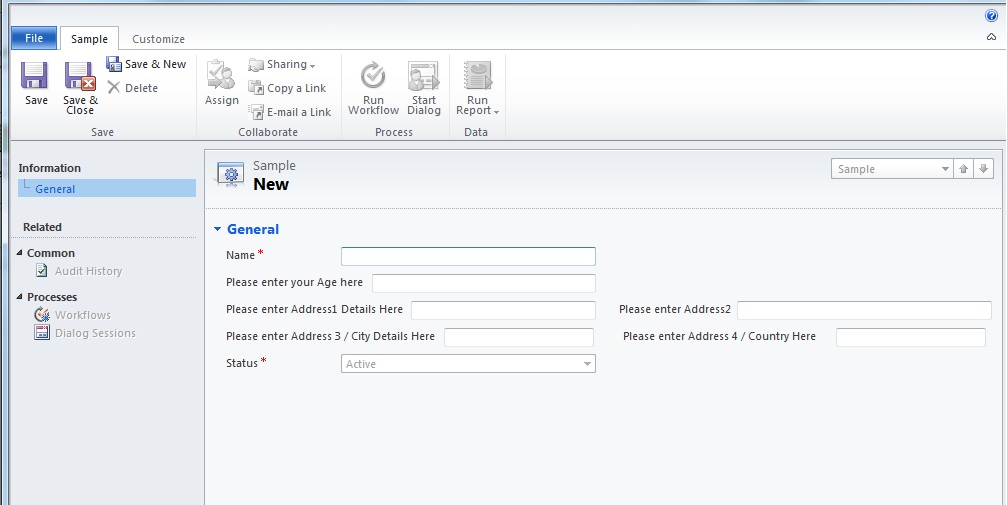
Then the fields will be display as below
Thursday, March 29, 2012

Picklists become inactive in Internet Explorer 9

Have you experienced below issue in CRM ?

When you open a record on an associated view, picklists become inactive in Internet Explorer 9.

Actually there is nothing much you can do, if you are a developer, because it's a bug in CRM 2011.

Microsoft has fixed this issue in their latest CRM Rollup 7, and you can find all the details from their site.

Update Rollup 7 for Microsoft Dynamics CRM 2011

Refresh Selected View on Button Click in CRM Ribbon

You may have implemented many buttons in CRM Ribbon area to perform your business transactions. And you may create new records, update or delete the records in the grid once the user clicks the Ribbon button. Then you may need to refresh the Grid.

There are many ways to refresh the page or grid, but the issue is once the page reload you will loose the selected view and CRM will load the Default View, instead of the user selected view. And if you want to keep the user selected view even after the Grid is refreshed, You can call the below java script inside your 'ribbon button click' after doing your actions, and before function ends.

grid = window.parent.frames('contentIFrame').document.getElementById('crmGrid');
grid.Refresh();

Tuesday, February 21, 2012

Get the Entity Data based on user time zone

If your CRM application is used by multinational users, and if you have custom web pages or any client applications, you have to make sure you show the date and time with the user's time zone, rather than just showing the value you get by retrieving from the CRM Service.
I have below described an easier method to do so.

First we have to get the current user's time zone.
And then let's retrieve the entity object from the CRM Service.
Then we can call our method that will adjust all the DateTime properties in the CRM entity.
public partial class SystemUser
{
    RetrieveUserSettingsSystemUserResponse userSettingsSystemUserResponse;

    /// 
    /// Initialize RetrieveUserSettingsSystemUserResponse
    /// 
    private void InitializeUserSettings()
    {
        if (this.Id != Guid.Empty)
        {
            RetrieveUserSettingsSystemUserRequest userSettingsSystemUserRequest = 
                new RetrieveUserSettingsSystemUserRequest { 
                  RequestId = this.Id,  ColumnSet = new ColumnSet(true),  EntityId = this.Id };

            userSettingsSystemUserResponse = (RetrieveUserSettingsSystemUserResponse)CrmServiceManager
                          .GetService(this.Id).Execute(userSettingsSystemUserRequest);
        }
    }

    /// 
    /// Get a date and returns it back adjusting TimeZone difference
    /// 
    public DateTime GetUserTimeZoneBasedDateTime(DateTime dateTime)
    {
        if (this.Id != Guid.Empty)
        {
            if (userSettingsSystemUserResponse == null)
            {
                InitializeUserSettings();
            }

            if (userSettingsSystemUserResponse != null 
                && userSettingsSystemUserResponse.Results != null 
                && userSettingsSystemUserResponse.Results.Count > 0)
            {
                return dateTime.AddMinutes(
                     ((UserSettings)userSettingsSystemUserResponse.Entity).TimeZoneBias * -1);                    
            }                
        }

        return dateTime;
    }
        
    /// 
    /// Get the Entity and returns it back adjusting TimeZone difference
    /// 
    public T GetEntityWithUserTimeZoneBasedDateTime<t>(T t) where T : Entity
    {
        if (t != null)
        {
            Dictionary<string, Datetime> changedDateTimeDictionary = new Dictionary<string, Datetime>();
            foreach (var attribute in t.Attributes)
            {
                if (attribute.Value is DateTime)
                {
                    changedDateTimeDictionary.Add(
                         attribute.Key, GetUserTimeZoneBasedDateTime((DateTime)attribute.Value));
                }
            }

            foreach (var item in changedDateTimeDictionary)
            {
                t.Attributes[item.Key] = item.Value;
            }
        }

        return t;            
    }
And now you can call the method as below

Guid currentUser = //Set the current user

//Get the record from CRM Service using any convinient method
Account account = new CommonFacade().Get<account>(accountId);

//Pass the retrieved object and with the current user
//That adjust the all DateTime properties in the object
//And reassigned it before displaying the entity

account = new SystemUser {Id = currentUser }.GetEntityWithUserTimeZoneBasedDateTime<account>(account);

//Now you can use the object to any display purposed
//Example
accountCreatedOnLabel.Text = account.createdOn.ToString();

Monday, February 13, 2012

Error: You do not have the necessary permissions to change the domain logon name for this user

You may get an error called "You do not have the necessary permissions to change the domain logon name for this user" when you deploy you plugin to CRM Server in CRM 2011 and when it was triggered. Then you should check whether the plugin is a synchronous plugin or an asynchronous plugin.
If it is a synchronous plugin, means that this error occurs through IIS. And if this plugin is a asynchronous plugin, means that this error occurs through Microsoft Dynamics CRM Asynchronous Processing Service.

1. If it a synchronous plugin(means that this error occurs through IIS)
Check the 'CRMAppPool' running user

Add the Local Administrator Role to the user


Finally do not forget to reset IIS.

2. If it a asynchronous plugin(means that this error occurs through Microsoft Dynamics CRM Asynchronous Processing Service)

Navigate to the Service and check the service running user


Add the Local Administrator Role to the user


Finally do not forget to reset IIS.

Thursday, February 9, 2012

Sending Emails using SendEmailRequest

When you want to send emails through CRM 2011, it is important to set the IssueSend boolean field explicitly.
Because the default value is false, and if the value is false, CRM marks the email as 'Sent' but CRM 2011 does not send the email. So if you want to fire the email to end user, you must set the IssueSend field to true

1. Method 01
//The below code will mark as the email as 'Sent' but CRM 2011 will not send the email to the relevant user
SendEmailRequest sendEmailRequest = new SendEmailRequest { EmailId = emailId, TrackingToken = ""};
2. Method 02
//The below code will mark as the email as 'Sent' but CRM 2011 will not send the email to the relevant user
SendEmailRequest sendEmailRequest = new SendEmailRequest { EmailId = emailId, TrackingToken = "", IssueSend = false};
3. Method 03
//The below code will attempt to send the email to the relevant user
//And if it success, CRM 2011 will mark the email as Sent
SendEmailRequest sendEmailRequest = new SendEmailRequest { EmailId = emailId, TrackingToken = "", IssueSend = true};

Friday, January 27, 2012

Mapping Value from Parent Form to child View in CRM

Sometimes, you have to get the value from parent form and has to show in the child form. Clients may use 2 methods to open child view.
1. Using Associate Views
2. Using Sub Grid
3. Using button in ribbon

Base on the clients' selected method, we have to implement the code, because if the child form is created using Associate Views, window.parent.opener.Xrm.Page.data will be null and when calling from sub grids window.top.opener.parent.Xrm.Page.ui will be null.

So here, I have implemented a method to check both conditions. And in the Parent form, you may have a Lookup, int, decimal or picklist, that has to be mapped with different control in child page

Then, copy below function to your common Library JS (If you dont have a common JS web resource, it's time to create a one)

function MapFromParentForm(target, source)
{
    var targetControl = Xrm.Page.data.entity.attributes.get(target);
    var sourceControl;

    if (window.top.opener.parent != null && window.top.opener.parent.Xrm != null 
                    && window.top.opener.parent.Xrm.Page != null 
                    && window.top.opener.parent.Xrm.Page.ui != null)
    {        
        sourceControl = window.top.opener.parent.Xrm.Page.data.entity.attributes.get(source);
    }
    else if(window.parent != null && window.parent.opener != null 
                    && window.parent.opener.Xrm != null 
                    && window.parent.opener.Xrm.Page != null 
                    && window.parent.opener.Xrm.Page.data != null 
                    && window.parent.opener.Xrm.Page.data.entity != null 
                    && window.parent.opener.Xrm.Page.data.entity.attributes != null)
    {
        sourceControl = window.parent.opener.Xrm.Page.data.entity.attributes.get(source);
    }

    if (targetControl != null && sourceControl != null)
    {
        var sourceValue;
        if (sourceControl.getAttributeType() == "lookup")
        {
            sourceValue = sourceControl.getValue()[0].name;
        }
        else
        {
            sourceValue = sourceControl.getValue();
        }


        if (targetControl.getAttributeType() == "lookup")
        {
            targetControl.setValue(sourceValue)
        }
        else if (targetControl.getAttributeType() == "optionset")
        {
            targetControl.setValue(parseInt(sourceValue))
        }
        else
        {
            targetControl.setValue(sourceValue)
        }
    }
}


Then from the child Page form,
1. Add the Common Javascript web Resouce
2. And in form onLoad event, called the function as below

MapFromParentForm with the dynamic parameters as 'new_name', 'new_contactId' where 'new_name' is the control in child form and 'new_contactId' is in the parent form